
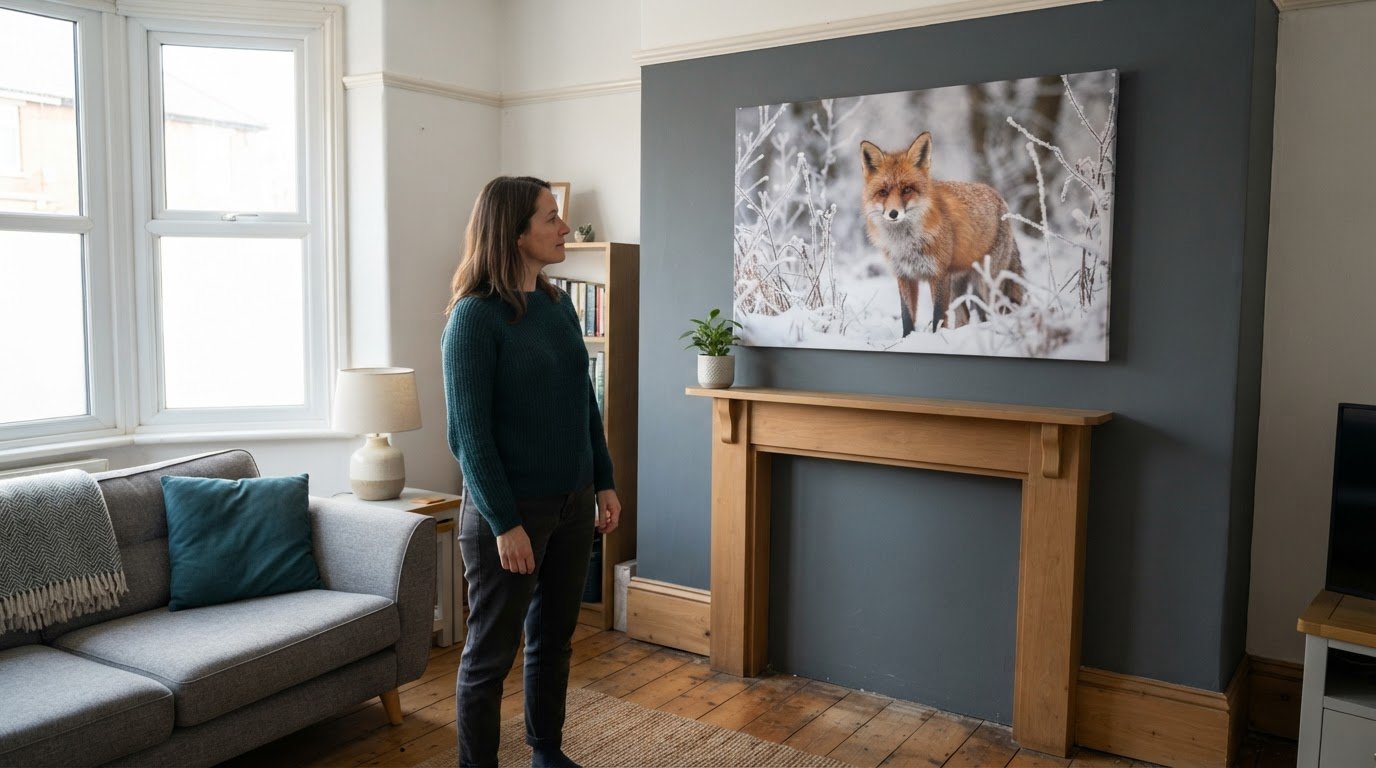
A large canvas doesn’t always need 300 DPI to look good. A high-resolution photo for canvas printing is often suitable at around 150 DPI, especially when the finished print will be viewed from farther away. For finer detail or close viewing, aim nearer 300 DPI.
It’s natural to focus on a photo’s pixel count, but canvas size and cropping matter too. The same image can look sharp at one size and less detailed when enlarged, so there’s no single pixel count that suits every print.
Here, you’ll learn how resolution, canvas size and viewing distance work together, with practical examples to help you judge whether your image is a good fit. We’ll also explain why a large canvas on a wall can look crisp from across the room even when it wouldn’t appear as sharp from very close up.
Key Takeaways
- Use pixels-per-inch as a guide: around 150 PPI can suit a canvas, while finer detail may call for more.
- Match the image’s pixel dimensions to the finished canvas size, allowing for any crop that removes part of the photo.
- Use the original photo file where possible; copies shared through messaging or social media may have reduced resolution.
- Think about where the canvas will hang: viewing distance affects how much fine detail people are likely to notice.
What Size Photo Do I Need For My Canvas Print?
Match the photo’s pixel dimensions to the finished canvas size. Also consider the image’s condition, how much it needs cropping and where you’ll hang the print.
Pixels and Print Clarity
Pixels are the tiny units that form a digital image; more pixels across the print usually preserve more detail. Around 150 pixels per inch is a useful canvas-printing guide, though sharpness also depends on focus and viewing distance. For example, a 30 × 20 cm canvas needs roughly 1,800 × 1,200 pixels. Canvas texture and finish affect the print’s appearance, whilst resolution determines how much picture detail the file can retain.
Professional Image Quality Checks
A professional assesses whether the image is focused, clean and detailed enough for enlargement. They inspect important features for blur, compression artefacts and image noise, which can become more noticeable across a large print. An original photo taken directly with a modern smartphone is usually high enough quality for a canvas. Its best size depends on its pixel dimensions and how much cropping the composition needs.
Assessing Maximum Canvas Dimensions
A professional estimates the maximum canvas size by matching the image’s pixel width and height to the intended print dimensions. An 80 × 60 cm canvas needs about 4,700 × 3,500 pixels as a reference. A 1,900 × 1,900 px minimum-resolution example may suit a maximum canvas size of 80 × 80 cm. UK canvas-printing costs depend on the chosen size and print option, so there isn’t one price for every canvas.
Checking Image Dimensions for Canvas Production
Image dimensions show how many pixels a file contains. On Windows, open the image’s properties in File Explorer and look in the Details tab. On macOS, Finder’s Get Info shows file information, while Preview’s Adjust Size displays pixel dimensions. These checks reveal the file’s actual pixel dimensions, rather than how it looks in a screen preview. Use the original file where possible: Facebook, Instagram and WhatsApp may reduce photo resolution when sharing.
What is the best resolution for large canvas prints?
A useful guide for large canvas prints is around 150 to 300 DPI. Viewing distance, image quality and the finished dimensions all affect the best fit.
Providing the Original Photo File
The original photo file preserves the most detail captured by the camera, making it a better starting point for canvas printing. A copy downloaded from Facebook, Instagram or WhatsApp may have lower resolution because these apps can shrink files. Use the original saved in your phone’s camera roll, or ask the photographer to email it at “Actual Size”. That gives the print more pixels to work with.
Checking Files for Canvas Production
File checks help assess whether the image suits the chosen canvas dimensions. A professional considers pixel dimensions, focus and compression before printing. JPEG is widely used for canvas photos; high-quality JPEG compression can produce very good results at 100 dpi. For canvases larger than 16 × 20 inches, one guide recommends a minimum of 300 DPI. These figures are useful reference points, not substitutes for checking the actual image.
Recommended Digital File Size for Canvas Production
Digital file size describes storage space, whilst pixel dimensions show image detail. A JPEG file of 2 MB is recommended as sufficient for a canvas print, but file size alone doesn’t prove suitability. The upload accepts JPG or PNG files up to 50 MB. A professional still matches the image’s pixels to the print size, since two files with equal storage sizes can contain different amounts of detail.
Use JPEG or PNG for the upload. TIFF files should be converted to JPEG before ordering; PDF is a document format, not one of the stated photo-upload formats. For cropping, allow extra image around the main subject because the canvas wrap uses picture area at the edges. Keep faces and other key details away from those edges. For a personal photograph, explore a Photo on Canvas print.
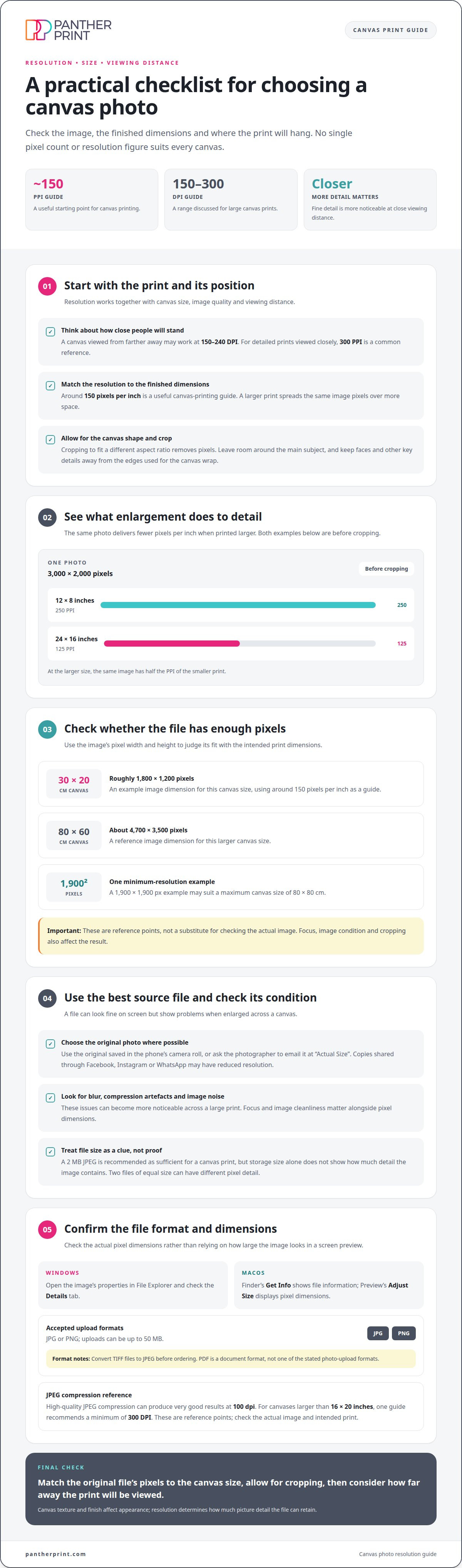
Recommended resolution by print size and viewing distance
Choose a resolution that suits both the canvas dimensions and its position. A large print viewed across a room has different requirements from a smaller picture viewed up close.
Matching Resolution to Viewing Distance
Viewing distance affects how clearly people notice individual pixels and fine detail. For a canvas viewed from farther away, 150-240 DPI can work; 300 PPI is a common reference for detailed prints viewed closely. The right balance helps match the image to its place, rather than choosing resolution in isolation. A large canvas above a sofa, for example, is usually seen from further away than a smaller print beside a desk.
Consider where the canvas will hang before choosing its size. A detailed photograph may suit a spot where people will view it closely, while a feature across the room has different requirements. Enlarging a phone photo spreads its pixels over more space, so the original detail still matters. Use the camera file at “Actual Size” for the best starting point.
Print Dimensions and Resolution
Print dimensions determine how densely the image pixels sit across the canvas. A 3,000 × 2,000 pixel photograph gives 250 PPI at 12 × 8 inches, before cropping. Enlarge it to 24 × 16 inches, and it provides 125 PPI, also before cropping. The same file therefore delivers less pixel detail per inch at the larger size.
Canvas shape and framing also influence your choice. Cropping to fit a different aspect ratio removes pixels, reducing the detail available for the print. Leave enough room around important subjects for the selected composition and edges. A 4 cm gallery frame option affects the finished presentation, and two frame thickness options are available. Pair the image dimensions with the canvas size and intended viewing position before deciding which format feels right for your space.
Photo resolution and canvas print suitability
A suitable image balances pixel detail, cropping, sharpness and finished canvas dimensions. No single resolution figure settles every case: the pixels left after cropping matter more than the file’s headline dimensions. Judge the actual composition alongside the intended viewing distance, rather than assuming a large file is automatically ready to print.
Check the photograph at 100% view to inspect its recorded pixels. Look for softness around important details, visible noise and compression marks. Then consider how much of the image will remain after cropping. A 420 × 650 pixel crop retains about 17.4% of the example image’s pixels, leaving far less detail for enlargement. A close portrait crop can therefore be less suitable than the uncropped picture, even if both came from the same file.
Crop size can change the result dramatically. For example, a 4,000 × 3,000 pixel group photograph might leave only a 1,000 × 1,500 pixel area for a tightly cropped portrait. That smaller usable image cannot support the same print dimensions as the original without spreading its pixels more widely. For a sharper result, a professional weighs the final crop against canvas size and viewing distance, then chooses a size that suits the remaining detail.
As a practical guide, 150 DPI can be sufficient for most canvas prints, particularly larger canvases viewed from farther away. Around 300 DPI can provide sharper detail for smaller prints or close viewing. These are reference points, not a substitute for assessing the image itself. A file that looks suitable on a phone screen may reveal softness when enlarged, so judge the print area, not just the preview.
For the clearest choice, pair the photo with a canvas size that respects its usable pixels and crop. Choose a photo on canvas to turn a favourite image into a print for your space.
Panther Print: Photography Canvas Prints
Panther Print offers Photography Canvas Prints and Photo on Canvas, so you can turn a personal image into wall art. If your photograph has enough detail and suits your chosen canvas size, it can make a colourful feature in your home. Consider the subject too: a family portrait, favourite landscape or animal close-up can all work well.
For a different look, Abstract Canvas Prints offer a bold alternative to personal photography. When choosing a photo and canvas together, consider the image’s pixel dimensions, how much it needs cropping and where you plan to hang it.
If you’d like help choosing a canvas for your photo, contact Panther Print.
Choose the image that feels at home
Start with a photograph you’ll enjoy seeing every day. Think about the feeling you want in the room, whether it’s a family moment, a favourite place or a burst of colour. Choosing a high-resolution photo for canvas printing matters, but the image should feel right for your space too.
Panther Print’s range includes Abstract Canvas Prints, Animals & Wildlife and Art for Kids & Nursery Art. Explore different looks, from lively subjects to designs for a child’s bedroom. Choose an image with a clear composition that you’ll love seeing on the wall.
Ready to take the next step with your chosen picture? Contact Panther Print to discuss your canvas print. Your favourite image could soon bring a personal touch to your space.
Frequently Asked Questions
Can I print a photo downloaded from social media?
Yes, but a social media download may not preserve the original image detail. For a family portrait, use the camera’s original file rather than a copy saved from a post or message. If someone else took the picture, ask them to send the original at “Actual Size”. This gives your print a better-quality file to work from.
Can canvas texture hide a blurry photograph?
No. Canvas texture changes the surface appearance, but it can’t bring back focus or detail missing from a blurry photo. A slightly soft image may be less noticeable from across the room than beside a desk, but key details such as eyes or lettering can still look indistinct. Choose a naturally sharp picture for the clearest result.
Can editing rescue a photo that is not quite good enough?
Editing can improve brightness, contrast or colour balance, but it can’t restore fine detail lost through blur, heavy compression or an extreme crop. Sharpening a soft portrait, for example, may make its edges more visible without restoring the original detail. Assess the edited image’s actual pixels against the canvas size, rather than relying on how it looks on screen.
Does a colour profile improve the result of a print on canvas?
A colour profile describes how the colours in a digital image should be interpreted for printing. Adobe RGB and S-RGB are accepted profiles for canvas printing. Profiles can help with consistent colour handling, but they don’t add image detail or fix an out-of-focus photo. Start with a correctly exposed, well-composed original and colours you’re happy to print.
How Can a Professional Check Whether My Photo is Good Enough Quality To Print?
A professional assesses the original file, its pixel dimensions and the intended print size. They also consider focus, blur, compression marks, noise and any crop that removes useful detail. Viewing the photo at 100% helps reveal its recorded pixels and flaws hidden in a small preview. The subject’s placement matters too, especially if important details sit near an edge.
What resolution and pixel dimensions are needed for a high-quality canvas print?
There isn’t one pixel dimension for every canvas: the required detail depends on the finished size, crop and viewing distance. Around 150 DPI is a useful reference for many canvas prints, whilst 300 DPI can suit close viewing or finer detail. For example, a high-resolution photo for canvas printing should retain enough pixels across both dimensions after cropping.